Have you ever wondered what impact your online meeting background has on your meeting? Do you know how to choose backgrounds that are professional, yet allow you to convey your message, mood, and style?
Here I provide guidelines for professional, corporate online meetings that you may take from home. However, you should alter based on your specific industry. You can also use these ideas for Teams, Google Meet, or any online meeting platform that allows you to use your own backgrounds.
What is a background?
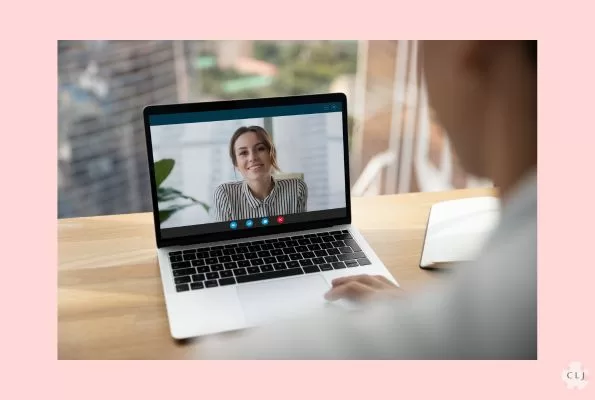
A background is the image that is shown behind you by the camera when you are on an online call. It could be a natural background, such as the actual objects that you are sitting in front of, for example, a wall or your furniture, or plants. Or it can be a virtual background that is an image or photo that can be uploaded to the meeting platform and projected when you are on camera.
When do I use a virtual background?
Use a virtual background under the following general conditions
- You don’t have ‘presentable’ objects behind you. They are messy or distracting
- You want to project a certain image, mood, or location in your meeting
- You want to show your company’s branding
Make sure your background reflects the image, mood, or location you want to project
If you want to project a professional image, then make sure your background is neat. Even if it is professional, do you want to project a more calming vibe? Do you want to make sure your company is known and therefore have a logo on the background? Do you want to energize people? Do you want people to think you are calling from a professional office, such as a Doctor’s office? Perhaps you just want to be neutral. Think about this ahead of time before choosing your background.
What do I need for my background to work well for my call?
Essential for any background – good lighting
I have found that the best source of light is from sunlight that comes from a nearby window. If that is not an option, try positioning lamps around your computer and/or test the lights in your room. You can also purchase a ring light, though I just use either the natural light from window, and lamps I have at home.
Turn on your camera and make sure you can see yourself clearly. If not, with the camera on, adjust the lighting. You will also notice that the light is different at different times of the day. Test both before and after applying a background.
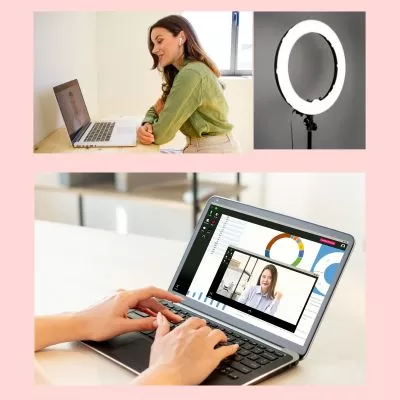
If you see a wavy image, that looks like someone is trying to peel the background off, and you can see the objects in your room instead of the background, that indicates that there is a problem with your lighting. Either move your computer set-up or laptop to a different room with better lighting, or keep trying to adjust the lighting. Try doing this several days ahead of your teleconference. I find, once you have found the “sweet spot” of light adjustments for a certain time of day, you know what to do in the future, without having to make major adjustments each time. However, do a quick check before each telecon.
Consider adding a green screen
Adding a green screen behind you, allows your background to mask the objects in the background and show more evenly and clearly. One of my offices gets a ton of natural light. In this case I don’t need a green screen. I have another section of my house, where I have to occasionally take calls from my kitchen. My background has low light and I have pots and pans hanging behind me. In this case I add a green screen and use a background.
You don’t have to buy a green screen. I actually use a green, plastic table cloth that is clipped to the shelves behind me. It is inexpensive, bought in a retail, discount store and works just fine. However, you can buy some very nice green screens that come with a stand. However, in either case add adequate lighting and test your background with the screen.
Before you buy a green screen or green table cloth, consider whether you will have to take it down often or you can leave it up all the time. That may influence your purchase. I prefer taking my calls in the room that has a lot of natural sunlight because I don’t have to deal with the green screen.
Always test your zoom background before getting on a call
At least a day ahead of the call, test your zoom background to make sure the lighting is adequate and it works with your natural lighting or green screen. For instance, I actually use a living room scene with a blue wall, because it looks best with the lighting in my room and my green tablecloth I use as my green screen.
Turn on your camera to make sure you like the way you appear with your background
Even if you have the perfect background, you may not like the way you appear with it. Try different backgrounds and see the one that makes you feel relaxed and confident.
Avoid these things in your teleconference background
- Messy objects – such as piles of paper, dishes stacked up
- Inadequate lighting
- Moving objects or other people moving in and out of the background
- Any distraction
How to put a virtual background on your Zoom call
You will upload your background to your meeting platform’s software. Whether you are using Zoom, Teams, Google Meet or any other online teleconferencing platform, make sure you check the specifications and instructions. Generally they will provide the dimensions of the image and the file format (for example, 1920 x 1080 pixels, JPG or PNG). They may also indicate a maximum file size.
They will provide the location in the software where you will upload the background. Usually it is somewhere in the settings or controls under ‘backgrounds’ or similar wording.
Here are some ideas for professional Zoom backgrounds, either natural or virtual
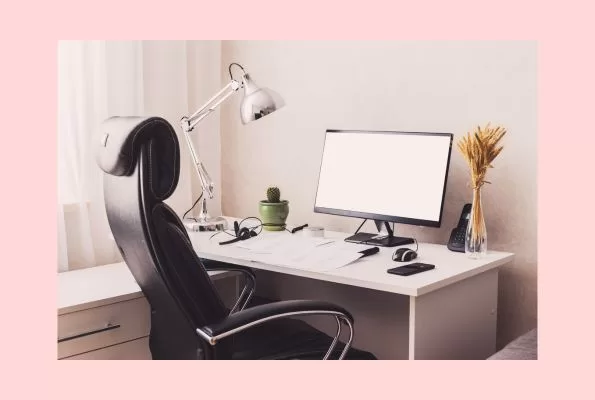
Your actual home office or living room as the background
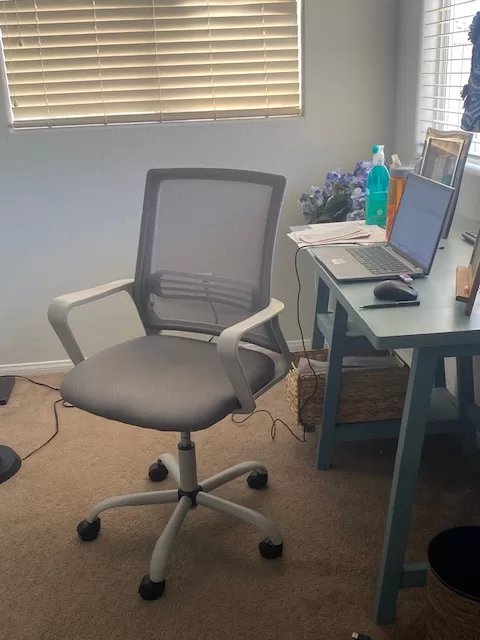
This is really the best as it is the most natural. However, it is good under the following conditions
- It is well lit – either through natural light coming in or adequate external lighting
- It is uncluttered – you have either plain walls or neat objects in the background, such as uncluttered desk, bookshelves, sofas, countertops etc.
- It is private. You don’t have others coming into your space
- It is okay to also use another room. Avoid showing beds, bathrooms, messy dishes, piles of papers etc.
Try different locations in your home to test the lighting and see where you look the best. This is the easiest option since you don’t have to mess with a background. However, this may not be possible, especially if you live in a small space where your office may have to double as the dining room or kitchen and you have distracting things in view. In that case go with a background.
Use Home Office Scenes as your virtual background
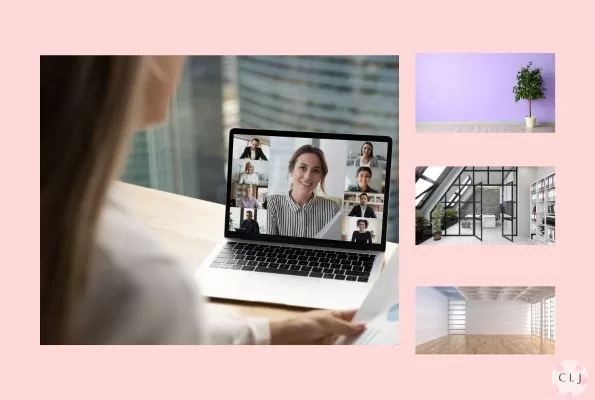
If people on the call are expecting you to work remotely from a home office, then choose a home office background. Keep it neutral and aesthetically pleasing. It can also be a room with minimal furniture. Having a plant can add a nice touch.
Make sure the photo you choose doesn’t show a messy, cluttered office. Consider the perspective. If you are sitting in front of the background does it look natural?
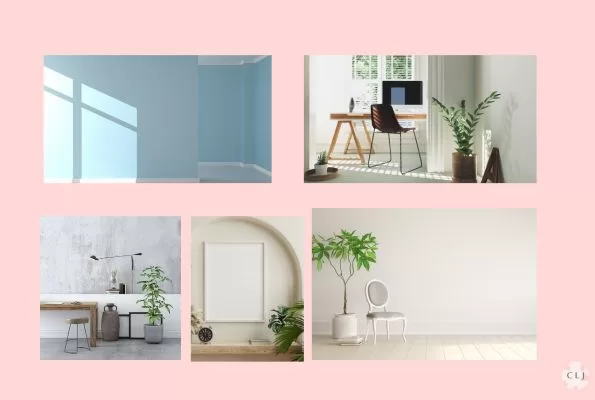
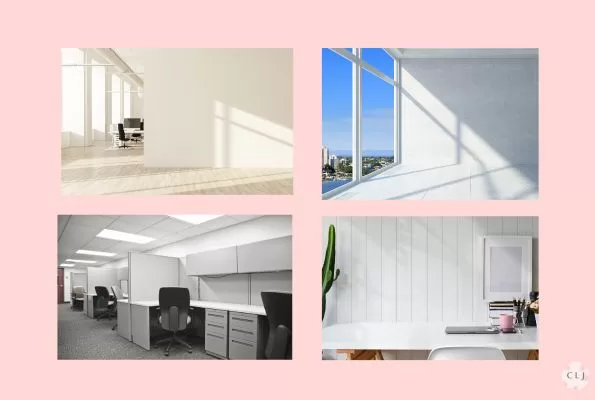
Use Office scenes as your virtual background
You can use an office scene from an actual office such as at a company. This is especially good if your call will be with customers and they are expecting you to be in an office.
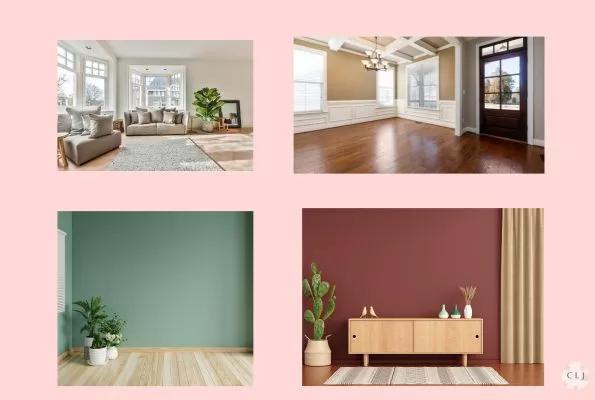
Use Living Room scenes as your virtual background
Living room scenes give a relaxed feel to the teleconference. Make sure that the furniture is not too distracting. Be sure to turn on your camera and test the background to make sure the colors work with your green screen and lighting.
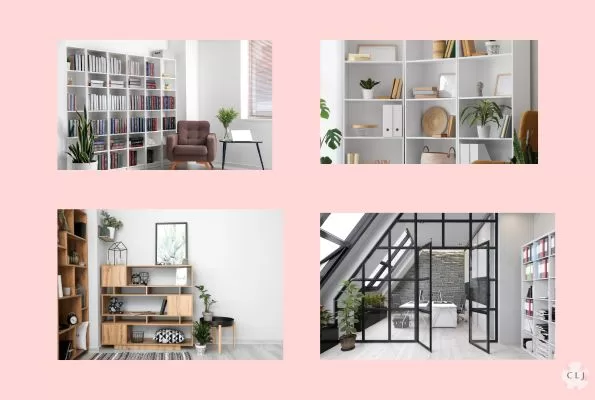
Use bookshelves as your virtual background
Bookshelves offer a naturally Academic or intellectual vibe. Again, make sure the books or objects on the shelves aren’t too messy or distracting.
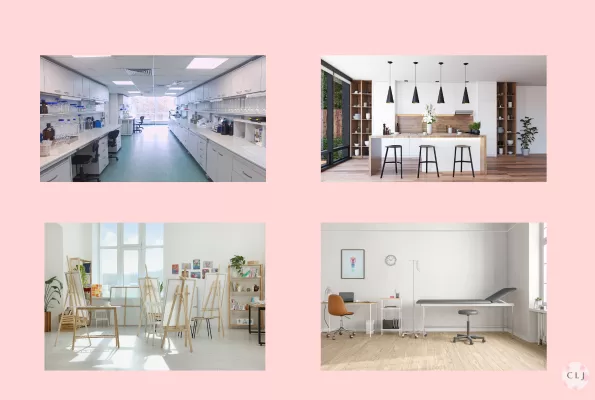
Use Professional Office scenes as your virtual background if you work in that industry
Perhaps you are a chef and want people to think you are calling from a professional kitchen? Or a scientist calling from a lab? Maybe a mechanic calling from the shop? An artist? A doctor? Whatever it is, even if you are at home, consider if it would add to your occupational presence to have a background from one of these places.
When to use the blur background
In your meeting application choose the “blur” option. This is good if you are taking the call from a cluttered space or a public space. However, test the blur background as sometimes even the blur isn’t totally blurred and you can see messy or moving objects.

Use your branding as your virtual background
Check with your company to see if they have professional backgrounds they would like you to use for business calls. You may also create your own if you are self-employed. Have a neutral background with your brand colors and add the logo to the corner. Using branding is a great idea to get customer’s familiar with your brand while projecting a professional image.
Use a neutral or solid colored virtual background
Use a neutral background such as a nice color or pattern if you want to project a ‘neutral’ image. Be cognizant of the color and the effect it might have on people. While a tan may be calming, a bright red would reflect energy or alarm. You can have subtle patterns or gradients, but again make sure they aren’t too distracting. You can also use empty rooms as a neutral background.
For office celebrations or holiday parties, occasionally try a fun virtual background
If you are holding a meeting where you are celebrating a company victory, or having a holiday celebration consider a festive background. However, keep in mind you are still at work so have fun but don’t go crazy with your background and show anything too edgy or inappropriate.
How many virtual backgrounds should I have?
Preload your online meeting program with 1-3 images you can click on quickly before a meeting. I generally use the same one so that I don’t have to do extra preparation. It is trusted and I know it works, in case I have to just jump on a call.
What about for my friends and personal calls?
For your personal friends and social calls, of course, do what you like. However, you may still want to think about what image you want to project – fun, calm, energy, warmth, family – prepare accordingly!
How do I get these virtual backgrounds?
Usually the online meeting programs have a few choices prepopulated in the program you can use. Check with your company to see if they have any branded backgrounds available.
If you use your own photo, or purchase photos online, you can just resize it in a photo viewer like Paint, then upload it to your Online Meeting software. There are online sites where you can buy Zoom backgrounds online. Or you can make your own background using images, designs, or photos you took.
I make my backgrounds in a light design program like Canva or you can use your preferred graphic design program. I create a blank canvas in the dimensions I need, then select or upload a photo, design, or image. Then download as a .jpg or .png or whatever file format is needed. You can also use applications like Powerpoint or Paint to upload a photo and resize it to the dimensions that your meeting platform needs. Then export the image in the correct file format.
What if I take meetings on my phone?
The same conditions as described above apply. Just make sure to test the background with your camera on your phone prior to taking the call. I find it easier to upload the backgrounds using a desktop computer. Then I open up the meeting application on my phone to check the background.
Taking a lot of online meetings is a regular part of remote work. Having an appropriate background preselected, uploaded, and tested will really make your life easier. They will make your meetings go smoother and set you up for success. Add a little creativity into the mix and it will also make for some daily joy.